In countries like the United States, most households and businesses use dual-band or tri-band routers that support both 2.4GHz and 5GHz frequencies. Many modern routers automatically select the best available band for devices, often prioritizing 5 GHz for faster speeds and lower interference. However, some smart devices, such as security cameras, smart plugs, and older devices, only support 2.4GHz. This makes it essential to know how to switch your WiFi network to 2.4GHz when needed.
When setting up a smart device that requires a 2.4GHz connection, you may need to manually switch your WiFi to this frequency. Here’s how you can do it, depending on your router and device settings:
Most modern routers offer both 2.4GHz and 5GHz bands. Here’s how to check and adjust your settings:
Log into your router’s admin panel:
Open a web browser and enter your router’s IP address (commonly 192.168.1.1 or 192.168.0.1)
Enter your admin username and password (found on the router label or provided by your ISP).
Find the Wireless Settings section:
Look for ‘WiFi Settings,’ ‘Wireless Networks,’ or ‘Advanced Settings.’
Disable band steering or Smart Connect:
Some routers automatically switch between 2.4GHz and 5GHz. If this feature is enabled, disable it to manually select the desired band.
Separate SSIDs (WiFi names):
If your router allows it, create separate WiFi names for the 2.4GHz and 5GHz networks. This makes it easier to connect to the correct band.
If your router supports separate SSIDs for 2.4GHz and 5GHz, simply connect your device to the one labeled for 2.4GHz. If you don’t see this option, check your router’s settings to enable separate network names.
If your router doesn’t allow separate SSIDs, you can temporarily turn off the 5GHz band while setting up your device:
Go to your router’s wireless settings.
Locate the 5GHz band and disable it.
Connect your device to the 2.4GHz network.
Re-enable the 5GHz band once the setup is complete.
Since 2.4GHz has a longer range than 5GHz, moving farther from your router may force your device to connect to the 2.4GHz band. This is a simple trick that works on some networks.
Some routers allow you to create a guest network. If your router does not offer separate SSIDs for 2.4GHz and 5GHz, setting up a guest network on 2.4GHz might help.
If you’re having trouble with your home network, another option is to create a mobile hotspot on your phone using 2.4GHz (some phones allow you to select the frequency). This can be useful for setting up smart devices.
 |
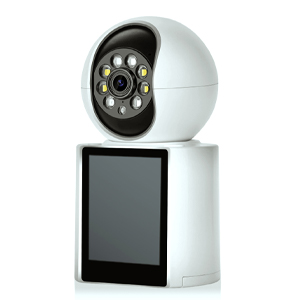
6MP Dual Lens Outdoor Security Camera
|
Switching to a 2.4GHz network is essential for connecting many smart home devices and older electronics. By accessing your router’s settings, separating network names, or temporarily disabling 5GHz, you can ensure a smooth setup process. If you encounter issues, checking with your Internet Service Provider (ISP) or upgrading to a more configurable router may help. With these steps, you can easily adjust your WiFi settings and optimize your network for all devices.
Copyright © 2023 INSEETECH LIMITED. All Rights Reserved.